
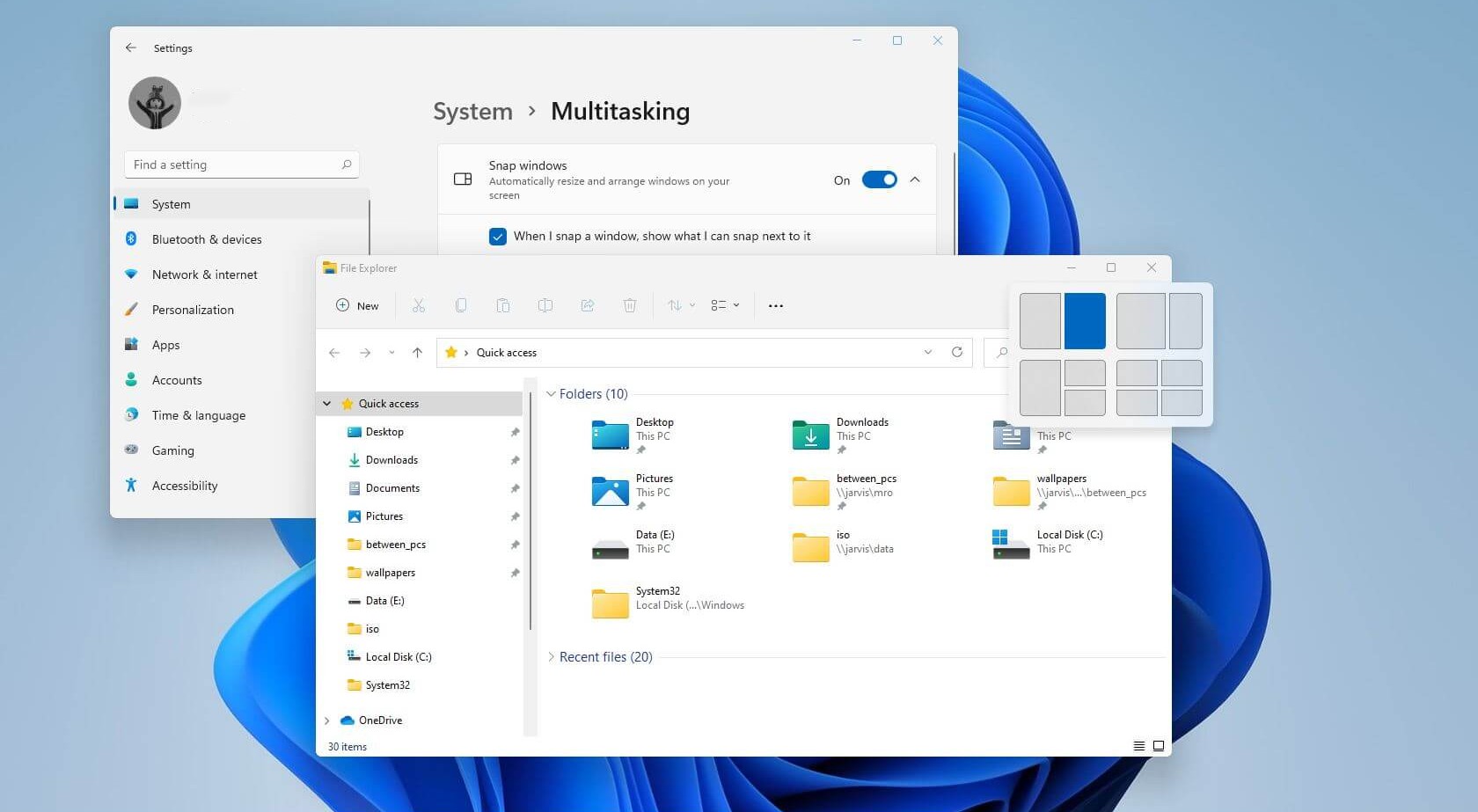
Hey everyone! Are you loving Windows 11 but still figuring out how to make the most of its multitasking features? Today, we’re diving into a super handy tool: Snap Layouts! This feature lets you organize your windows like a pro, perfect for juggling work, browsing, and chatting all at once. Whether you’re a student, remote worker, or just someone who hates a cluttered desktop, this quick guide will have you snapping in no time. Let’s get started!
Step 1: Open Your Apps
First things first—launch the apps you want to use. For example, open your web browser, a document in Word, and maybe your email client. Windows 11 makes it easy to multitask, so feel free to have a few windows ready.
Step 2: Hover and Snap
Hover your mouse over the maximize button (the square icon) in the top-right corner of any window. A pop-up menu will appear with different layout options—like splitting your screen into two, three, or even four sections! Choose the one that fits your needs. For instance, select the left-half option to snap the window to the left side of your screen.
Step 3: Fill the Gaps
Once you’ve snapped one window, Windows 11 will automatically show thumbnails of your other open apps in the remaining space. Just click on the one you want, and it’ll snap right into place. Boom—multitasking magic! You can even create Snap Groups to save and switch between setups quickly.
Step 4: Customize with Keyboard Shortcuts
For power users, try these shortcuts:
- Windows key + Left/Right Arrow: Snap to half-screen.
- Windows key + Up/Down Arrow: Snap to quarters or minimize. Pro tip: If you’re on a laptop, enable “Snap windows” in Settings > System > Multitasking for even more options.
And that’s it! Snap Layouts can seriously level up your workflow in Windows 11.
If you’re running into glitches, updates, or need personalized tech support to optimize your setup, reach out to us at rhinotech! We’re local experts in all things’ tech, located in Canton, GA, and Easley, South Carolina, serving surrounding areas. Contact us to learn how we can help with Windows upgrades, troubleshooting, and more. We’ve got your back!
#Windows11 #TechTips #SnapLayouts #ProductivityHacks #WindowsTutorial #GeorgiaTech #SouthCarolinaTech #MultitaskingMastery