
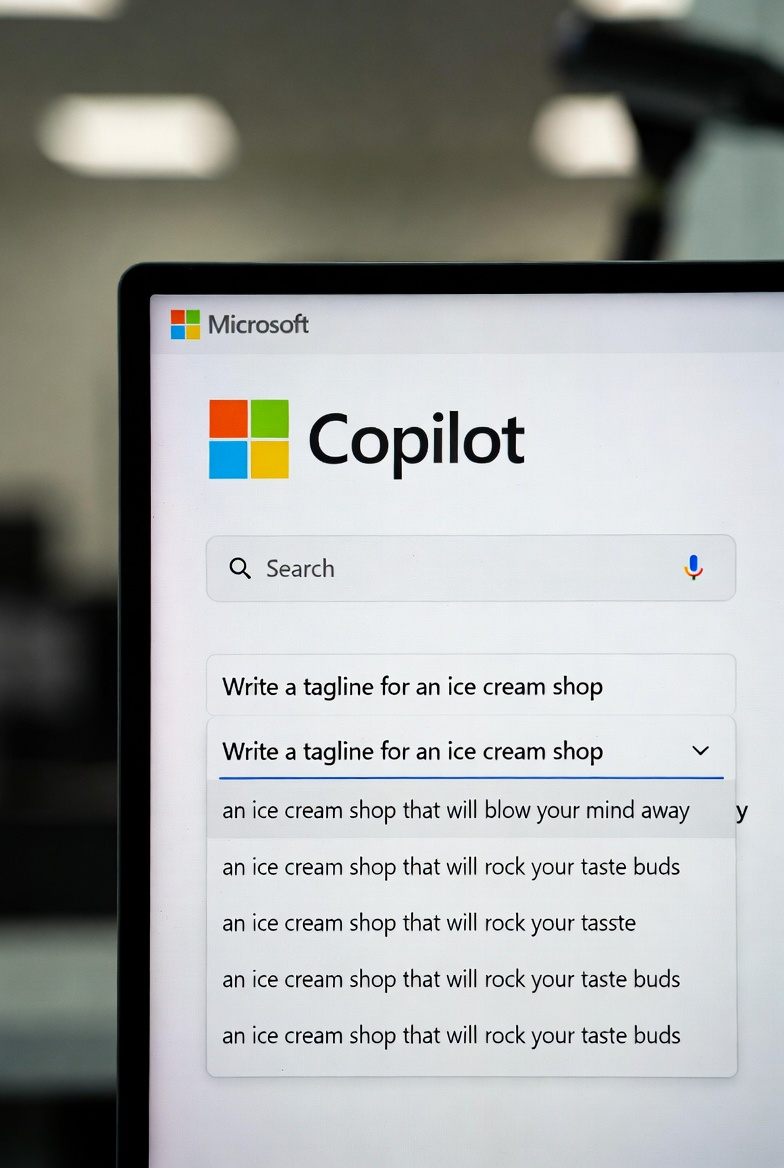
Windows 11 isn’t just pretty, it now has a built-in AI helper called Copilot that can write emails, brainstorm ideas, explain tech stuff, create images, and even plan your weekend. If you’ve been ignoring that little Copilot button on your taskbar, you’re missing out on serious time-saving magic. Here’s a dead-simple, step-by-step guide for regular end users—no coding required!
Step 1: Fire Up Copilot in Seconds
- Look for the Copilot icon on your taskbar (it’s the colorful swirl next to the search bar).
- Click it OR just press Windows key + C.
- The Copilot panel slides in from the side. You’re ready to chat!
Step 2: Ask It Anything (Real-Life Examples)
- Type or speak: “Write a polite email to my boss asking for Friday off.”
- Or: “Summarize this recipe I just copied from a website.”
- Try: “Create a shopping list for a family of 4 on a $50 budget.”
- Voice mode works great—click the microphone and talk naturally!
Step 3: Get Creative with Images
- Say: “Generate an image of a cozy mountain cabin in the snow for my lock screen.”
- Copilot uses Microsoft Designer to create it instantly. Download and set it as your wallpaper in one click.
Step 4: Make It Work Smarter with Your Apps
- Highlight text in Edge, Word, or Notepad → right-click → “Ask Copilot” for instant summaries or rewrites.
- Need help with Excel? Paste your spreadsheet data and ask: “Create a simple budget chart from this.”
Step 5: Customize Copilot to Fit Your Life
- Click the three dots in Copilot → Settings.
- Turn on “Creative,” “Balanced,” or “Precise” tone depending on the vibe you want.
- Pin it to your Start menu or taskbar for even faster access.
Boom—you now have a free AI assistant living right inside Windows 11 that actually understands normal people! It gets better the more you use it.
Windows 11 is awesome… until something glitches, the AI won’t launch, or you want it tweaked perfectly for your workflow. That’s exactly why we’re here!
At Rhinotech, we’re your local Windows 11 experts. We set up Copilot, optimize your PC for AI features, handle updates, fix weird bugs, and make sure everything runs smooth. Serving Canton, GA, Easley, South Carolina, and all surrounding areas, our team comes to you or works remotely so you don’t have to stress about tech.
Ready for a Copilot demo, a full system tune-up, or just some friendly help? Hit us up at https://rhinotech.io or shoot us a message. We make Windows 11 actually fun to use.
Who else is using Copilot yet? Drop your favorite prompt below, I might steal it!

