
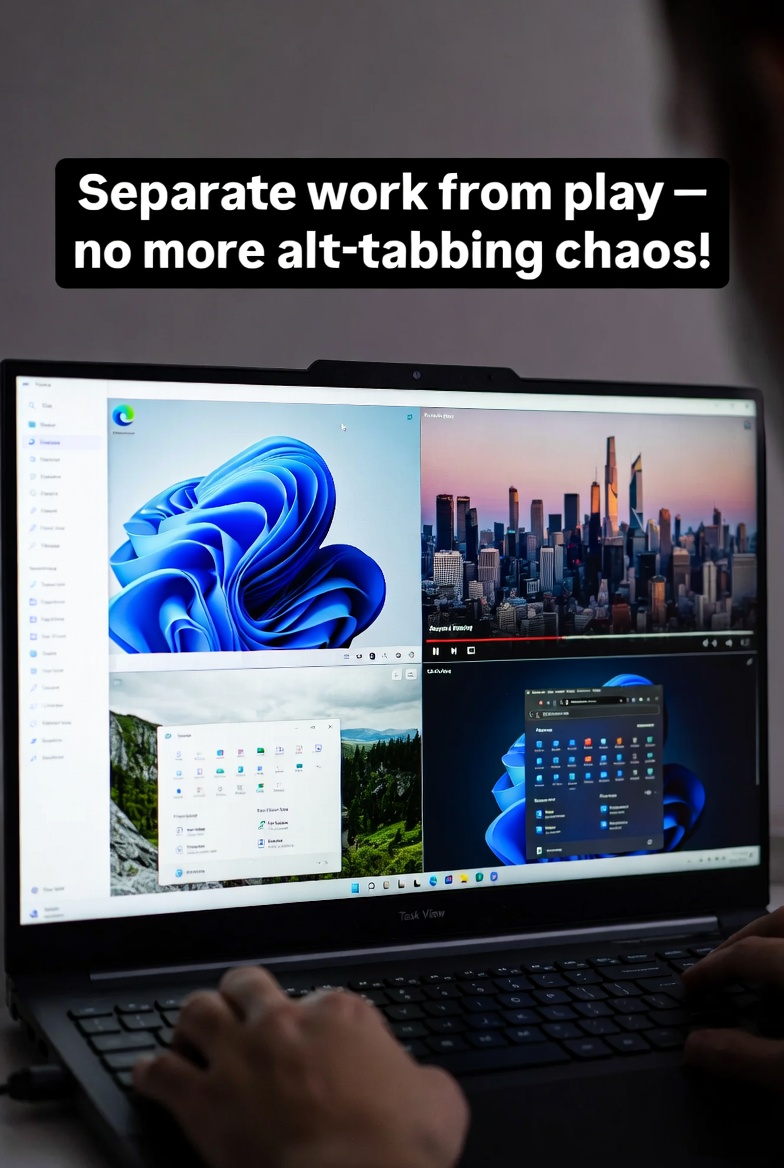
Hey everyone! If you’re juggling work, streaming, and browsing on Windows 11, multiple desktops are a gamechanger. They let you organize your apps into separate workspaces without clutter. Here’s a quick guide for end users like you:
- Open Task View: Press the Windows key + Tab on your keyboard or click the Task View button on your taskbar (it looks like two overlapping rectangles). If it’s not there, right-click the taskbar, select Taskbar settings, and turn on Task view.
- Create a New Desktop: In Task View, click the “New desktop” button at the top. Boom – you’ve got a fresh workspace!
- Switch Between Desktops: Use Windows key + Ctrl + Left/Right arrow to hop between them or go back to Task View and click the one you want.
- Customize Each Desktop: Open apps on specific desktops and even set different wallpapers. Right-click on a desktop in Task View, choose “Choose background,” and pick your vibe.
- Rename or Close Desktops: Hover over a desktop in Task View, click the three dots, and rename or close it when you’re done.
Pro tip: This is perfect for separating work from play – no more alt-tabbing chaos!
If you’re in Canton, GA, Easley, SC, or surrounding areas and need help with Windows 11 setup, upgrades, or any tech woes, Rhinotech has your back! We’re experts in making tech simple and seamless. Contact us for services tailored to you.